






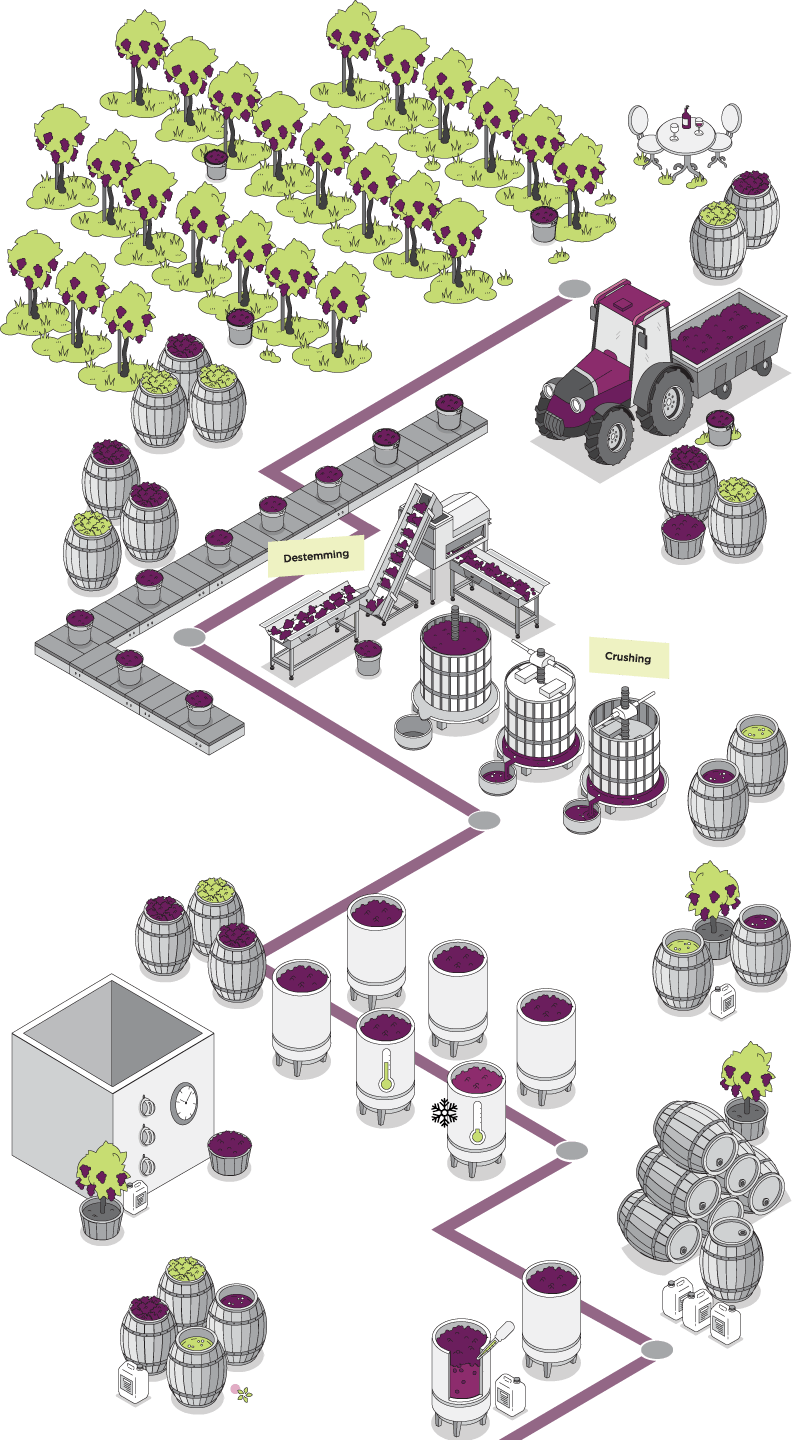

Scroll to learn more.






To use the IWP, you have 3 options to start you off - you can either:
- Click the numbers on the side to jump to a specific stage
- Click the numbers on the landing page to jump to a specific stage
- Click the up and down arrows to move through the process
Due to the size constraints on small screens, it is not possible to have the titles of the stages constantly visible. To view the title of the stage, hold the number of the stage you are considering.
The stages are split up into two types - those with documents and those without. The stages that have documents are marked with a purple number box on the landing page and those without are marked with a black number box.
To see what documents are applicable to a stage, click the 'Products' button underneath the copy - this will open a popup where you will be given the choice of several filters. Some stages have multiple levels of filtration and can be changed to provide different documents. Changing a filter that sits higher in the hierarchy than another filter will reset the lower level filter, requiring you to make a new selection.
Once you have found the document(s) that you are looking for, please click it to download. You will know if you have selected the correct document when the title and download icon change colour. To close the popup, click the X icon in the top right corner just above the popup.
How to Use the Interactive Wine Process
There are three ways to navigate through the Wine Process
1. Use Your Mouse Wheel
- Scroll down to move through the process steps in ascending order before returning to the home page.
- Scroll up to move through the steps in descending order before returning to the home page.
2. Use the Step Numbers
- Click any step number in the sidebar to jump directly to that stage of the process.
- Hover over a step number to view a tooltip showing the stage name.
- Once you've navigated to a stage, you can continue using your mouse wheel or select another step number at any time.
3. Select a Stage from the Home Page
- Click any stage on the home page to jump directly to it.
- From there, continue navigating using your mouse wheel or the step numbers.
- To return to the home page at any time, click the ‘PinnacleTM’ icon.
Understanding the Stage Indicators
Stages are divided into two categories:
- Purple number boxes indicate stages that contain downloadable documents.
- Black number boxes indicate stages that do not contain documents.
Viewing and Downloading Documents
- Click the ‘Products’ button beneath the stage description to open the document selection window.
- Use the available filters to refine the documents displayed.
- Some stages contain multiple levels of filtering. If you change a filter selection, any filters below it will reset and require a new selection.
- Once you find the document you need, click it to download.
- When a document is selected, its title and download icon will change colour to confirm your selection.
Closing the Document Window
To close the document selection window, click the X in the top-right corner above the popup.
This version is shorter, easier to scan, and better suited to an online help section.